

Documentation Index
Fetch the complete documentation index at: https://domoinc-jkreitzman-patch-1.mintlify.app/llms.txt
Use this file to discover all available pages before exploring further.
Intro
Buzz consists of the following panes:- A navigation pane that lists all of your conversations and provides access to different options.
- A conversation pane in which the selected conversation appears.
- A details pane where you can view information about the selected conversation and configure settings.
- A “Flag for follow-up” pane in which you can view all conversations you have flagged for further review.
- A “Discover” pane that shows trending topics, online users, recent conversations, etc.
- Entering Ctrl + Alt + x on your keyboard.
- Selecting Toggle Fullscreen in the Buzz menu at the top of Buzz.
 in the conversation pane.
You can also enlarge the Buzz panel view by dragging the left edge of the panel as wide as you want.
The main interface components of Buzz are the same in the web and desktop versions. The only difference is that the desktop version includes additional options in a toolbar. For more information, see Desktop version toolbar options.
Video - Buzz Overview
in the conversation pane.
You can also enlarge the Buzz panel view by dragging the left edge of the panel as wide as you want.
The main interface components of Buzz are the same in the web and desktop versions. The only difference is that the desktop version includes additional options in a toolbar. For more information, see Desktop version toolbar options.
Video - Buzz Overview
Buzz Menu, Status, and Universal Compose
In the black bar at the top of Buzz, you can access the Buzz menu, which includes a number of general-purpose settings options, as well as the Universal Compose icon. This bar is available in every pane in Buzz, so you can take advantage of these options no matter where you are.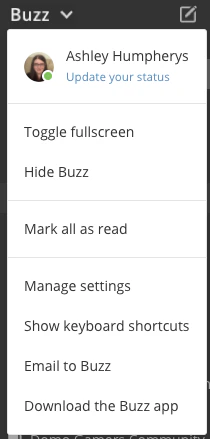
Buzz Menu
In the Buzz menu, you have access to the following options:- Update your status. Set your status to Available, Busy, Away, or Out of office. You can also add a custom message to your status when you are unavailable.
- Toggle Fullscreen. Toggles full-screen mode for Buzz. In this view, all three panels are displayed at once across the screen. You can also toggle full-screen mode by entering Ctrl + Alt + x on your keyboard.
- Mark All as Read. This lets you mark all messages as read, thereby removing all notifications for unread messages.
- Manage Settings. Opens your Notification Settings.
- Show Keyboard Shortcuts. Opens a list of keyboard shortcuts for use in Buzz.
- Email to Buzz. Lets you convert an email message into a Buzz conversation. For more information, see Importing an Email Thread into Buzz.
- Download the Buzz App. Lets you download the desktop version of Buzz to your computer. For more information, see Downloading and Running the Buzz Desktop Version.
Status
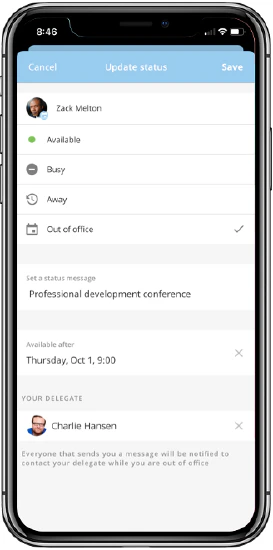
Update your status on web or mobile to Available, Busy, Away, or Out of the office. When someone sends you a 1:1 message or @mentions you in a conversation and your status is set to something other than Available, they will see a warning message that states you are unavailable. You can add custom messaging to your status message when you are unavailable as well as assign a delegate when you are Out of office. An icon on your avatar indicates your current status. When your status is set to Available, a colored dot will show on your avatar, Green indicates you are Available and have been interacting with Domo. Yellow indicates that you Available, but have not been active within Domo recently. Gray means you are logged out of Domo. These colors are automatically updated by the system based on your activity inside of Domo.
Universal Compose
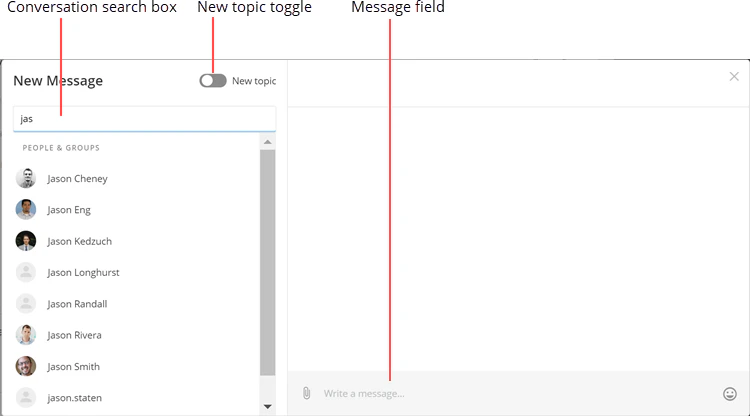
Universal Compose lets you compose a Buzz message from anywhere in Buzz without first having to locate and open a conversation. You can start a conversation from scratch by searching for the people or groups you want to message. Or, you can add a message onto an existing conversation by searching for the conversation. This dialog opens when you click the icon that appears over any pane in Buzz OR when you click

| Component | Description |
|---|---|
| Conversation search box | Lets you search for a person or group to start a new conversation with, or an existing conversation to join. |
| New topic toggle | Lets you specify whether the topic you want to add to is new or already exists. If the topic is new, you are prompted to enter a name for the topic as well as set the privacy. |
| Message field | Lets you enter your message. |
Navigation Pane
In the navigation pane, you can locate the conversation you want to view or contribute to. You can also open the Flag for Follow-up and Discover panes, as well as invite team members to Buzz. In full-screen mode, this is the pane that appears on the left. The following screenshot points out the most important features of the navigation pane: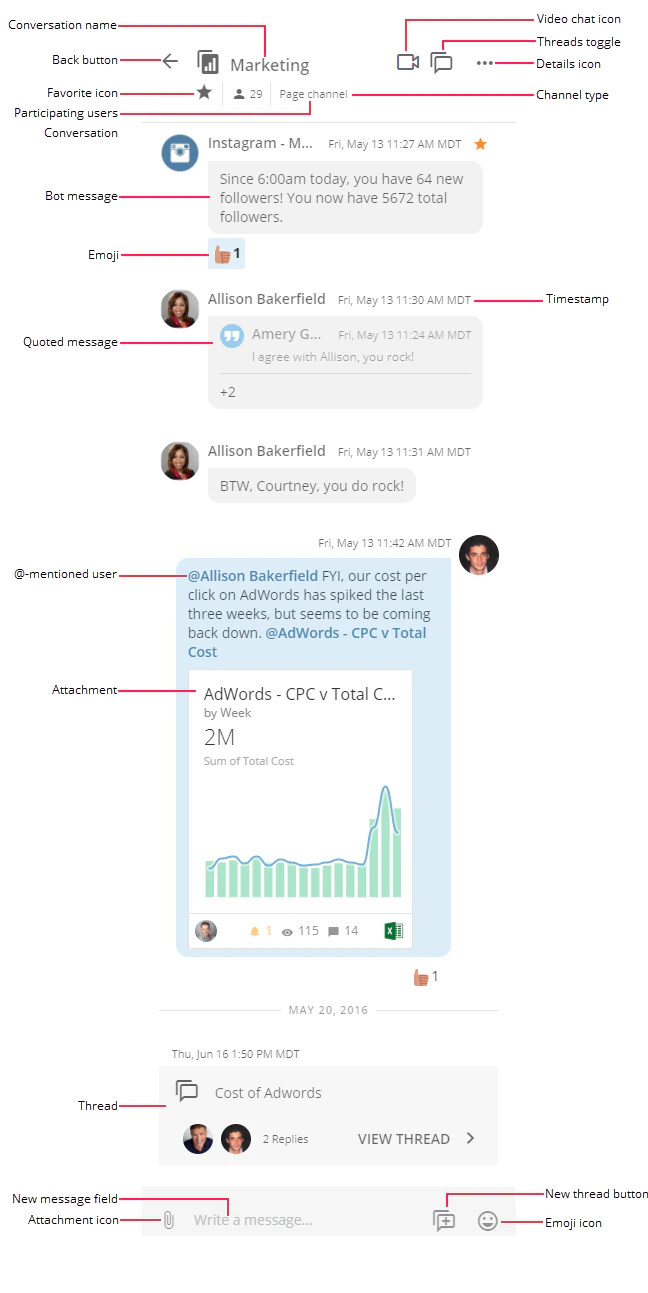
| Component | Description | ||||||||||||||||||||||||
|---|---|---|---|---|---|---|---|---|---|---|---|---|---|---|---|---|---|---|---|---|---|---|---|---|---|
| Search box | Lets you filter conversations in Buzz by entering a keyword. When you click in the field, a Search Buzz pane opens. Here you can enter your search term. Results display with conversation names, conversation types, and the number of member users. You can sort search results by relevance, by creation date, or by last updated date. The Buzz search can locate conversations by participant, name, or message content. | ||||||||||||||||||||||||
| Conversation toggle | Lets you use the arrows to move back and forth through conversations as you viewed them. | ||||||||||||||||||||||||
| ”Flag for follow-up” link | Opens the Flag for follow-up pane, which shows you all of the Buzz messages you have flagged, allowing you to quickly follow up on your action items. A gray numeral to the right of the link indicates the number of flagged messages. | ||||||||||||||||||||||||
| ”Discover” link | Opens the Discover pane, in which you can see trending topics, online users, messages with the most reactions, and recent conversations. | ||||||||||||||||||||||||
| Favorited conversations | Lists conversations you have added as Favorites (by going into the Details view for the conversation and clicking Add to Favorites). You can move conversations up or down in the list by clicking the plus icon then using the three-bar icons to drag conversations to where you want them. | ||||||||||||||||||||||||
| Conversations | Provide access to given conversations within Buzz. A numeral to the right of a conversation name indicates that there is this number of unread messages in the conversation. You can remove a conversation with unread messages from the list by mousing over it and clicking the “x” button that appears. If a conversation has threads, these appear under the conversation name and are referred to as “Thread message.” If you click the “Thread message” text for a conversation, the thread opens directly in the conversation pane. Conversations are divided into a number of different types, each of which is indicated using a different icon. These icons are as follows: | Icon | Conversation Type | --- | --- |  | Public conversation. All users in your Domo instance are automatically members of public conversations and can view and contribute to them. |  | Group conversation. A conversation limited to specified members. You must be a member of the group to view or contribute to the conversation. |  | One-on-one conversation. A conversation between you and one other person. If you invite another user to a one-on-one conversation, it becomes a group conversation. If the dot appears yellow, it indicates that the other person in the conversation is online. Otherwise, the dot appears gray. |  | Page conversation. A conversation centered around a page. Only users with access to the page can see or contribute to the conversation. |  | Card conversation. A conversation centered around a card. Only users with access to the card can see or contribute to the conversation. |  | Project conversation. A conversation centered around a project. Only users with access to the project can see or contribute to the conversation. | If you click the plus button to the right of the “Conversations” text, the Universal Compose pane opens, allowing you to start a new conversation. For more information, see Buzz Menu and Universal Compose. | |||||||
| Conversations list | Displays conversations that you have recently opened or that contain unread messages (indicated by a numeral to the right). |
Flag for Follow-Up Pane
You can access the Flag for follow-up pane by clicking Flag for follow-up in the navigation pane. This pane displays all messages you have flagged (by mousing over the message, clicking the ellipsis icon, and selecting Flag for follow-up). You can click a message to open it in the conversation pane so you can take action on it. Or, if you have already taken the necessary action, you can unflag it by clicking its “x” icon (causing it to be removed from the Flag for follow-up pane).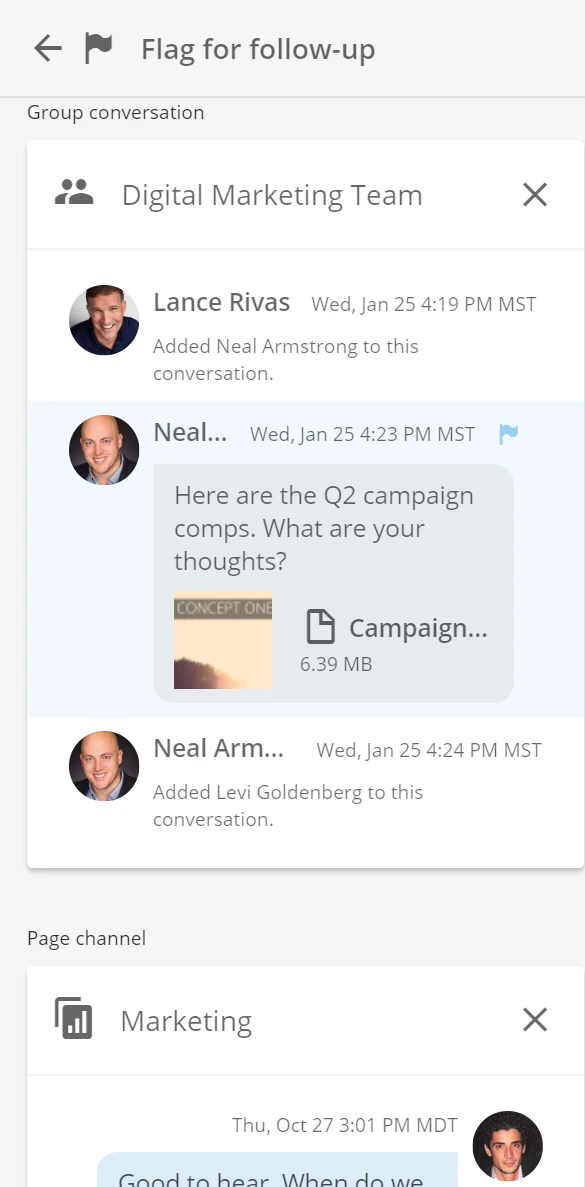
Discover Pane
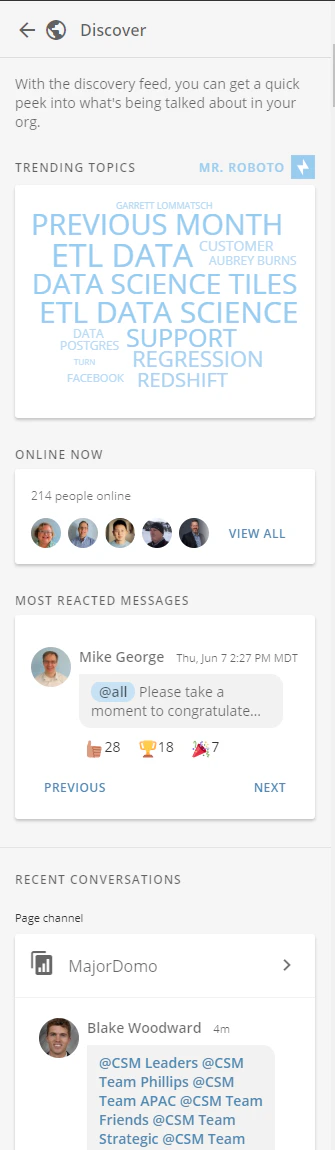
You can access the Discover pane by clicking Discover in the navigation pane. This pane auto-populates with information based on Buzz conversations happening in your company. In the pane, you can find all of the following:- Trending Topics. Frequent topics of conversation within your company’s Buzz appear here in a Word Cloud chart. You can click any word in the chart to filter to show conversations containing that word. For example, if you clicked “Facebook,” all conversations containing the word “Facebook” would open in the conversations pane.
- Online Now. Here you can view all users who are currently logged into your Domo instance.
- Most Reacted Messages. Here you can see messages that have had the most reactions (based on the number of emojis clicked). Only one message is shown here at a time; you can see additional messages by clicking Next or Previous.
- Recent Conversations. All of your recent conversations appear here.
Search Buzz Pane
In the Search Buzz pane, you canfilter conversations in Buzz by entering a keyword. You open this pane by clicking in the Search box in the navigation pane. Results display with conversation names, conversation types, and the number of member users. You can sort search results by relevance, by creation date, or by last updated date. The Buzz search can locate conversations by participant, name, or message content.
Conversation Pane
The conversation pane is the heart of Buzz. Here you can engage in conversations with the individuals and groups you choose. The following screenshot points out the most important features of the conversation pane. In full-screen mode, this is the pane that appears in the center.
| Component | Description | |||||||||||||||||||||||||||||||||
|---|---|---|---|---|---|---|---|---|---|---|---|---|---|---|---|---|---|---|---|---|---|---|---|---|---|---|---|---|---|---|---|---|---|---|
| Conversation name | The name of this conversation. Conversations based around people (rather than cards, pages, etc.) take the name of the people and/or groups included in the conversation, while data conversations based around data elements such as pages and cards take the name of the elements (card, page, project, etc.) they are tied to. | |||||||||||||||||||||||||||||||||
| Back button | Opens the Buzz menu. In full-screen mode this icon does not appear. | |||||||||||||||||||||||||||||||||
| Favorite icon | Lets you add this conversation as a favorite. You can then access it quickly under the Favorites filter in your Buzz menu. | |||||||||||||||||||||||||||||||||
| Participating users | Indicates the number of users who are included in this conversation. Click to see the names of all of the included users. | |||||||||||||||||||||||||||||||||
| Threads toggle | Shows all of the threads (side conversations) for this conversation. You can click a thread to open just that thread in the conversation pane. | |||||||||||||||||||||||||||||||||
| Details icon | Opens the Conversation Details for the conversation. | |||||||||||||||||||||||||||||||||
| Channel type | Indicates the type of conversation. Conversation types include the following: - Public Channel — The conversation is open to all users in your Domo. - 1 on 1 — The conversation is between two people. - Group Conversation — The conversation is between three or more people (Domo groups may or may not be included). - Page Channel — The conversation is associated with a specific page. - Card Channel — The conversation is associated with a specific card. - Project Channel — The conversation is associated with a specific project. Furthermore, each of these can have “threads”—side conversations that break off of the original conversation. If anyone from the original conversation can view the thread, it is simply called a “thread.” If the thread is limited to certain people, it is called a “private thread.” | |||||||||||||||||||||||||||||||||
| Bot message | Indicates a message that has appeared automatically in this conversation as a result of a connected Bot. For more information about Bots, see Adding a Bot to Buzz. | |||||||||||||||||||||||||||||||||
| Emoji | Shows user reactions to this message. You can add an emoji after a message by mousing over the message, clicking  | |||||||||||||||||||||||||||||||||
| Timestamp | Shows when a comment was added to this conversation. | |||||||||||||||||||||||||||||||||
| Quoted message | Indicates a message from earlier in this conversation that has been “re-quoted.” You can quote a message in a conversation by mousing over the conversation and clicking  | |||||||||||||||||||||||||||||||||
| Conversation | Displays the selected conversation. Comments are sorted chronologically, with the most recent comments appearing at the bottom of the list. Comments for a given day are grouped within that day. When you mouse over a post in a conversation, an options panel appears:  | Option | Description | --- | --- | Like icon  | Lets you “like” this message. If the message has not yet been liked, a “like” emoji appears and the value is set to 1. If the message has already been liked, the emoji’s value is raised by 1. | Quote icon | Lets you quote this message in your reply. This is useful when you want to reply to an earlier message in a thread but don’t have the proper context because of more recent messages. | Reaction icon | Lets you insert a reaction emoji after this message and sets the value to 1. Other viewers can then click the emoji to raise the value by 1. This allows you have other emojis besides the standard “like” icon. For example, if a user found a thread amusing, he could insert a “laughing” face emoji. Other users who agreed could then click on the emoji to raise the value. | Favorite menu option | Lets you add a message as a Favorite. Favorited messages appear in the Favorited Messages section of the Details pane for this conversation. | Flag for follow-up menu option | Lets you flag this message for follow-up. When you do this, the message appears in the Flag for Follow-up pane so you can easily find it later and take the necessary action. A blue flag icon also appears next to the message in the original conversation so you know it has been flagged. | Create thread menu option | Lets you create a thread within this conversation using this message as the starting point. | Create task menu option | Lets you create and assign a task based on this message. For more information, see Creating and assigning a task in Buzz. | Edit menu option | Lets you edit a message you have already posted. When you edit a message, the word “Edited” appears next to it to indicate that it has been modified. | Delete menu option | Deletes this message. When you delete a message, it is replaced by the text “This message has been deleted” so viewers know there is a piece of the conversation missing. This option is only available if you wrote the post to be deleted or you have an “Admin” default security profile or a custom role with the “Edit Conversations and Messages” privilege enabled. | |||||||||||
| @-mentioned user | Indicates a user who has been specifically referenced in this message. | |||||||||||||||||||||||||||||||||
| Attachment | A thumbnail for an attached file or referenced card. If the thumbnail is for a file, you can click it to open a larger preview. From there you can open it in the reading view. You can hide file attachments by clicking the Hide option next to the filename. If the thumbnail is for a referenced card, you can click it to show a preview of the card. From there, you can open its Details view, add it to a card page, or add it as a Favorite. You cannot hide cards as you can file attachments. | |||||||||||||||||||||||||||||||||
| Thread | Indicates a break-off thread within this conversation. You can create a thread from a message by mousing over the message, clicking the ellipsis, and clicking   at the top of the conversation pane. This opens a pane that shows entries for all threads in the conversation. You can then click an entry to open the thread in its entirety. at the top of the conversation pane. This opens a pane that shows entries for all threads in the conversation. You can then click an entry to open the thread in its entirety. | |||||||||||||||||||||||||||||||||
| New message field | Lets you enter a new message in this conversation. You can add attachments to the message by clicking the  icon or emojis by clicking the icon or emojis by clicking the  icon. You can also reference users, groups, cards, pages, or projects within your message by inserting @ then entering the name of the item you want to reference. You can also start a side thread from the message by clicking icon. You can also reference users, groups, cards, pages, or projects within your message by inserting @ then entering the name of the item you want to reference. You can also start a side thread from the message by clicking  . . | |||||||||||||||||||||||||||||||||
| Attachment icon | Lets you upload an attachment to this message, either a file from your computer or network or a Domo card. | |||||||||||||||||||||||||||||||||
| New thread icon | Lets you start a side thread in the conversation with this message as the initial message in the conversation. Threads can be set to private (default) or public. Private threads can only be viewed by their creators and anyone @-mentioned in the message or invited in the conversation details view. Public threads are visible to all members of the conversation. | |||||||||||||||||||||||||||||||||
| Emoji icon | Lets you add an emoji to this conversation. |
Details Pane
In the details pane for a conversation you can view and edit details for the conversation such as the name, description, attachments, invited users, and so on. The following screenshot points out the main components of this pane: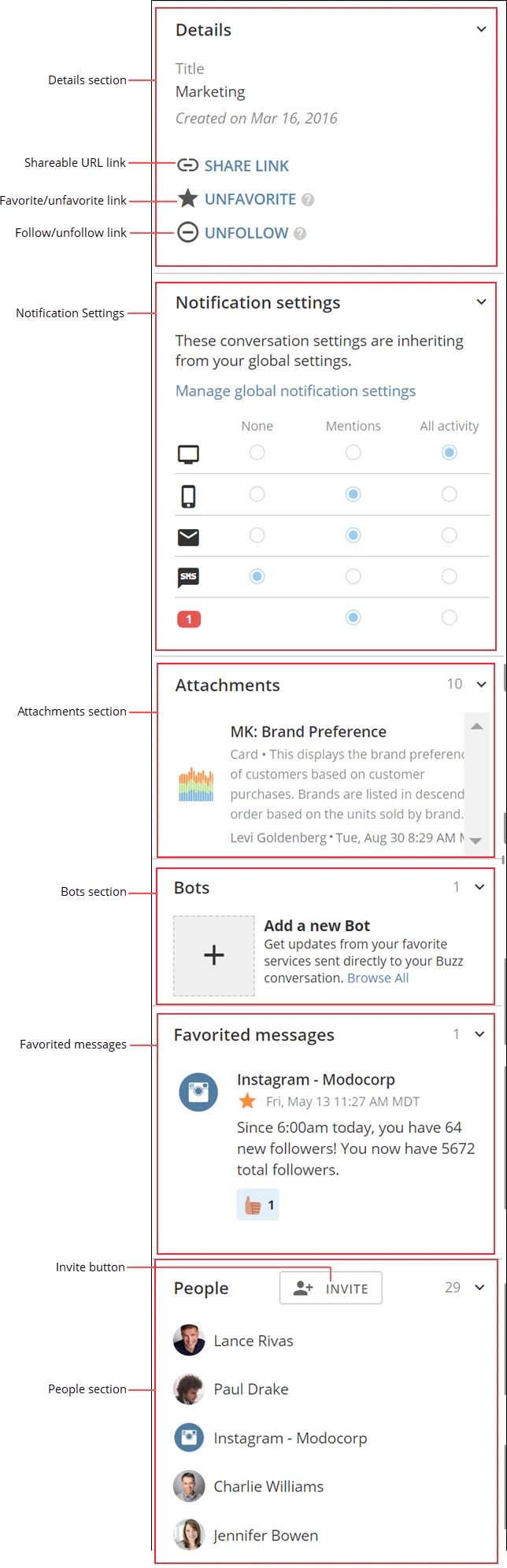
| Component | Description |
|---|---|
| Details section | Shows basic information about this conversation, including the title, description, and start date. The options that appear here differ depending on whether you are in the details view for a main conversation or a thread as well as the privacy status. For example, the Make Public option is only available for private threads. You can change the title of a people-centered conversation (which takes as its title the names of its primary participants) by clicking and editing. You cannot change the name of a data-centered conversation (i.e. a conversation around a card, page, or project) here. The only way to change the name of a data-centered conversation is to change the name of its element. For example, to change the name of a page conversation, you would need to change the name of the page. |
| Shareable URL link | Generates a URL you can then copy and send to other users. Those users can then follow this URL to open this conversation in Buzz. |
| Add as Favorite/Unfavorite link | Lets you add this conversation to or remove it from your Favorites list in the navigation pane. |
| Follow/Unfollow link | Lets you follow or unfollow this conversation. If you follow a conversation, it is considered active and appears in your Conversations menu in the navigation pane If you unfollow a conversation, it is removed from your Conversations menu. However, you can return to it by searching for it in the navigation pane. |
| Import Email option (not shown) | Lets you import an existing email thread into this Buzz conversation. For more information, see Importing an Email Thread into Buzz. |
| Make Public option (private threads only) | Makes a thread visible to all members of the channel. Be aware that once you make a thread public, you cannot change it back to private. |
| Delete (private threads only) | Deletes this thread from the conversation. |
| Notification Settings | Lets you configure Notification Settings for this conversation. You can configure whether notifications are sent via email     |
| Attachments section | Lists all files that have been attached to this conversation. Click a file to open a preview of it as well as download it to your computer. |
| Bots section | Lets you add “Bots”—integrations with various third-party connectors—to your Buzz. For more information, see Adding a Bot to Buzz. |
| Favorited messages | Displays all messages you have added as favorites by clicking the  |
| Related conversations (not shown) | Displays conversations with related content. |
| Invite button | Lets you invite users to a conversation. Users invited to a conversation receive notifications for the conversation even if they are not yet following it. |
| People section | Shows all people and groups active in the conversation. A yellow circle next to a person’s picture indicates that person is currently online. A gray circle indicates that the person is not online at the moment. |
Desktop Version Toolbar Options
The desktop version of Buzz is the same as the web version in almost all respects, so all of the above user interface information applies to both versions. The major difference in the desktop version is the addition of a number of toolbar options in the top left corner. The following tables describes these options: Edit Menu| Option | Description |
|---|---|
| Undo | Undoes your most recent action (the same as pressing Ctrl+Z) |
| Redo | Redoes an action you have undone (the same as pressing Ctrl+Y) |
| Cut | Cuts a selection of text (the same as pressing Ctrl+X) |
| Copy | Copies a selection of text (the same as pressing Ctrl+C) |
| Paste | Pastes a selection of text (the same as pressing Ctrl+V) |
| Select All | Selects all text in any given field (e.g. when writing a message, editing a channel name, etc.) (the same as pressing Ctrl+A) |
| Find | Opens the search screen, in which you can search for Buzz conversations containing the specified name or keyword. |
| Option | Description |
|---|---|
| Start on Login | When turned on, Buzz opens automatically when you log into your computer. |
| Mute All Notifications | Turns off notifications for all channels and chats you have joined. For more information about notifications, see Configuring Notification and Alert Settings. |
| Disable Icon Flashing | Turns off icon flashing. |
| Logout of Domo | Logs you out of Buzz and returns you to the login screen. |
| Option | Description |
|---|---|
| Reload | Refreshes Buzz. |
| Zoom In | Zooms in one level closer. |
| Reset Zoom | Returns to the default zoom settings. |
| Zoom Out | Zooms out one level. |
| Option | Description |
|---|---|
| [Team Name radio buttons] | Lists all of the different Domo instances you have logged into in Buzz Desktop. Click the button for a different instance to switch over to the version of Buzz that instance. |
| Previous Team | Opens Buzz Desktop for the previous instance, if you have authenticated to more than one. |
| Next Team | Opens Buzz Desktop for the next instance, if you have authenticated to more than one. |
| Add Team | Switches you over to the company login screen so you can add a new team to your Buzz Desktop instance. |
| Option | Description |
|---|---|
| Add Conversation | Opens the Start a Conversation or Find an Existing One dialog, as described above. |
| Browse Card and Page Conversations | Opens the Browse the Card Conversations dialog, as described above. |
| Move to the Previous Conversation | Opens the conversation above your currently open conversation in the list. |
| Move to the Next Conversation | Opens the conversation below your currently open conversation in the list. |
| Option | Description |
|---|---|
| Report a Problem | Opens a dialog in which you can enter feedback and then send to Domo Support. |
| About Buzz | Tells you which version of Buzz you are using. |
| Check for Updates | Looks to see whether you are due for any Buzz Desktop updates; if so, these are downloaded and installed automatically. |