

Documentation Index
Fetch the complete documentation index at: https://domoinc-jkreitzman-patch-1.mintlify.app/llms.txt
Use this file to discover all available pages before exploring further.
Intro
Mobile Widgets allows you to add your favorite Cards to your home screen (Android) or today view (iOS) for at-a-glance insights. Video - Domo Mobile - WidgetsUsing mobile widgets on Android
On Android, you can add multiple widgets to your screen and resize them to look the way you want. You are able to search for specific Cards by name and add them to your screen.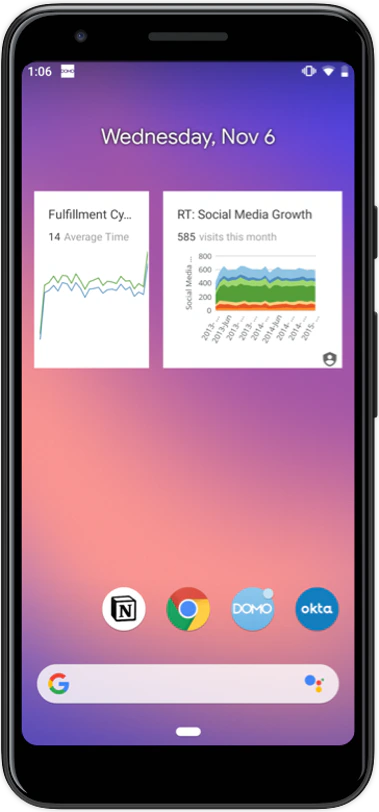
- On a Home screen, touch and hold an empty space.
- Tap Widgets
 .
. - Touch and hold the Card widget. You’ll see images of your Home screens.
- Slide the Card widget to where you want it.
- Click on the widget you just added to the screen.
- Type in the name of a Card in the search bar to find and add the Card you want.
- Touch and hold the widget on your Home screen.
- You will see an outline with dots on the sides.
- To resize the widget, drag the dots.
- When you’re done, tap outside the widget.
Using mobile widgets on iOS
On iOS, you are able to add up to five Cards from your Favorites Page to your widget. You will see the Card’s live preview, title, and Summary Number.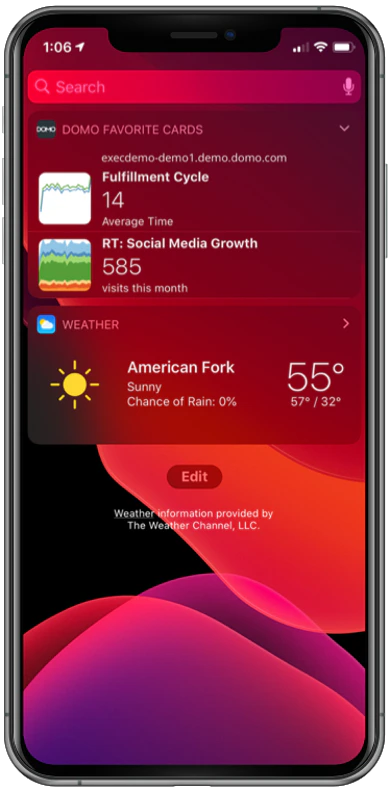
- Swipe right over the Home screen or Lock screen.
- Scroll to the bottom and tap Edit.
- To add the widget, tap the
 next to the Domo Favorite Cards widget. To reorder your widgets, touch and hold
  next to the apps and drag them in the order that you want.
 - To finish, tap Done.
- Inside the Mobile App, click on the Menu
 Icon.
Icon. - Select the Settings
 Icon.
Icon. - Click on the Widget settings menu.
- Drag and drop any Card from your Favorites Page into one of the five Card slots.
- You can use this same method to reorder the Cards.