

Documentation Index
Fetch the complete documentation index at: https://domoinc-jkreitzman-patch-1.mintlify.app/llms.txt
Use this file to discover all available pages before exploring further.
Intro
Microsoft OneDrive for Business is an online file-sharing and personal cloud content management service for businesses. Use this connector to pull data files from your OneDrive for Business account into Domo. You can retrieve the data files in any of the following file types: CSV, XLS, XLSX, XML, ZIP, and GZIP. You can connect to your Microsoft OneDrive Business Enterprise OAuth Configuration account in the Data Center. This topic discusses the fields and menus specific to the Microsoft OneDrive Business Enterprise OAuth Configuration connector user interface. To add Data Sets, set update schedules, and edit Data Set information, see Adding a DataSet Using a Connector.Prerequisites
To connect to your Microsoft OneDrive Business Enterprise OAuth Configuration account and create a DataSet, you need to select the OAuth Configuration.Connecting to Your Microsoft OneDrive Business Enterprise OAuth Configuration Account
This section enumerates the options in the Credentials and Details panes on the Microsoft OneDrive Business Enterprise OAuth Configuration Connector page. The components of the other panes on this page, Scheduling, and Name & Describe Your DataSet, are universal across most connector types and are discussed in great detail in Adding a DataSet Using a Connector.Credentials Pane
This pane contains fields for entering credentials to connect to your Microsoft OneDrive Business Enterprise OAuth Configuration account. The following table describes what is needed for each field:| Field | Description |
|---|---|
| OAuth Configuration | OAuth Configurations have service credentials stored by your administrator that automatically logs you in, so only your personal OAuth login is required. Your administrator may create and edit configurations in the Data Center, in the Accounts tab. |
Details Pane
| Menu | Description | |||||||||||||||||||||||||||||||
|---|---|---|---|---|---|---|---|---|---|---|---|---|---|---|---|---|---|---|---|---|---|---|---|---|---|---|---|---|---|---|---|---|
| Report | Select the Microsoft OneDrive Business Enterprise OAuth Configuration report you want to run. The following reports are available:
| |||||||||||||||||||||||||||||||
| Drive Id | The ID for the requested drive. | |||||||||||||||||||||||||||||||
| Addressing | Select the type of addressing with which the item can be found. | |||||||||||||||||||||||||||||||
| Path | Enter the relative path of the file/folder to retrieve the report. For Shared File, enter the relative path of the file/folder of the user who has shared the file/folder. e.g. /Documents/test.csv | |||||||||||||||||||||||||||||||
| Folder Name | Enter the folder name. | |||||||||||||||||||||||||||||||
| Shared File Name | Enter the shared file name with extension. | |||||||||||||||||||||||||||||||
| File/Folder Name | Enter the name (or a portion of the name), without extension, of the MS OneDrive file/folder to retrieve. The connector returns the most recently created or modified file matching the name, based on what you have selected in the Date Field menu. Note: For the Children report, a Folder Name (or a portion of the Folder name) is expected. | |||||||||||||||||||||||||||||||
| Shared Folder Name | Enter the parent shared folder name. | |||||||||||||||||||||||||||||||
| Nested Shared File Path | Enter the complete nested path of the shared file with extension. For example: Folder1/Folder2/test.csv | |||||||||||||||||||||||||||||||
| Match Type | Specify whether the retrieved file starts with or contains the name you have entered in the File Name. | |||||||||||||||||||||||||||||||
| File Or Folder | Specify whether the item is a folder or a file. | |||||||||||||||||||||||||||||||
| File Type | Select the file type for the data file you want to retrieve. | |||||||||||||||||||||||||||||||
| File Name or Portion to Search for in Zip | Enter the name of the zipped file to be retrieved. Leave the field blank to retrieve the first zipped file. | |||||||||||||||||||||||||||||||
| Zipped File Type | Select the file type for the zipped data file you want to retrieve. | |||||||||||||||||||||||||||||||
| Parent Folder Name | Enter a complete folder name (not case-sensitive) to limit the file search to a specific folder’s root contents. Subfolders are ignored. If you leave this blank, the search includes all files in all folders for which you have access. | |||||||||||||||||||||||||||||||
| Date Field | Specify whether to retrieve a file based on its creation or last modified date. This is useful when there are multiple files containing the name you have entered in the File Name. | |||||||||||||||||||||||||||||||
| Is Password Protected? | Select Yes if the Excel file is password protected. | |||||||||||||||||||||||||||||||
| File Password | Enter the file password. | |||||||||||||||||||||||||||||||
| Sheet Name | Enter the sheet name you want to retrieve from the specified spreadsheet. | |||||||||||||||||||||||||||||||
| Sheet Name Match Type | Select the type of match to perform on the sheet name. |
Advanced
| Menu | Description |
|---|---|
| Enter your data tag | Enter the tag where your data resides in the XML text. |
| Do you require attributes in data? | Select Yes if you require attribute values as a part of data. |
| Enter fields to exclude | Provides a comma separated list of fields you want to exclude from the XML import. |
| Enter XPath expression | Enter your XPath query using standard XPath syntax as defined by the World Wide Web Consortium. (http://www.w3.org/TR/2014/REC-xpath-30-20140408/) |
| Header Start Row | Enter the number for the header row in the data set. |
| Data Start Row | Enter the number for the first data row in the data set. |
| Footer | Enter the number of rows at the end of the data set to skip. For example, to skip the last two rows you would enter 2. |
| Delimiter | Select the desired delimiter for parsing CSV files. |
| Custom Delimiter | Enter the desired CSV delimiter character. Enter \t for tab or Unicode chars in \\uxxxx form (e.g. \\u005E). |
| Quote Character | Select the desired quote character for parsing CSV files. (A double quote is the CSV standard.) |
| Custom Quote Character | Enter the desired CSV quote character. Enter Unicode chars in \\uxxxx form (e.g. \\u005E). |
| Escape Character | Select the desired escape character for parsing CSV files. |
| Custom Escape Character | Enter the desired CSV escape character. Enter Unicode chars in \\uxxxx form (e.g. \\u005E). |
| File Encoding | Select the file encoding. Defaults to UTF-8. |
Other Panes
For information about the remaining sections of the connector interface, including how to configure scheduling, retry, and update options, see Adding a DataSet Using a Connector.FAQ
Which report can I use to download a file that has been shared with me?
Which report can I use to download a file that has been shared with me?
What is the procedure for obtaining the Sharing URL required by the Download Shared File (Using SharingURL) report?
What is the procedure for obtaining the Sharing URL required by the Download Shared File (Using SharingURL) report?
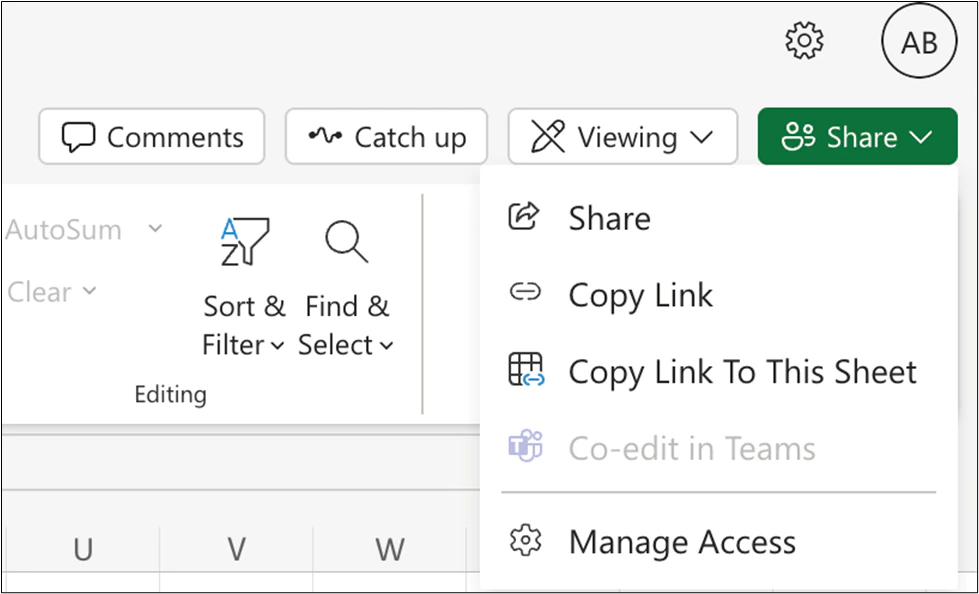
The Sharing URL can be obtained through two distinct methods:
-
- Browser Address Bar: Use the file’s URL as displayed in the browser address bar during file viewing.
-
OneDrive Generation: Utilize the URL generated by OneDrive upon selecting Copy link from the Share menu.
I have a dataset that uses one of the deprecated reports to get a shared file. Do I need to recreate my dataset?
I have a dataset that uses one of the deprecated reports to get a shared file. Do I need to recreate my dataset?