Documentation Index
Fetch the complete documentation index at: https://domoinc-jkreitzman-patch-1.mintlify.app/llms.txt
Use this file to discover all available pages before exploring further.
Intro
Use the JSON Expand action to convert JSON data stored in a column into structured, tabular output. This action takes a source column containing JSON data and applies a configurable JSON operation tree that matches the structure of your data. You can control how fields are expanded, formatted, and placed into columns, producing rows and columns suitable for downstream transformations.JSON Operations Fundamentals
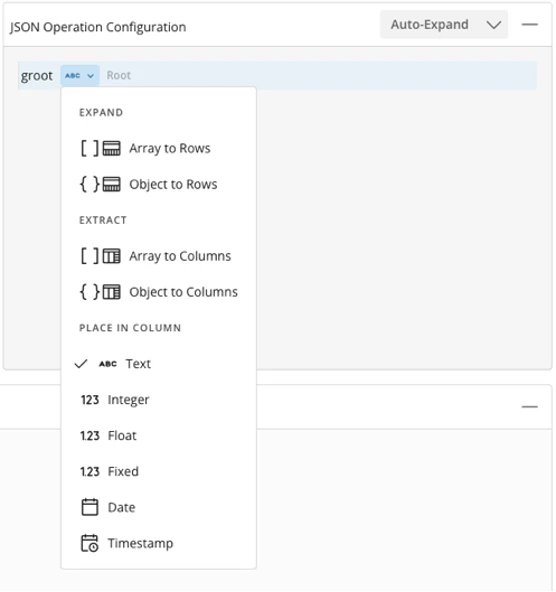
The JSON Expand action begins with a source column that contains JSON data. The source column can have one root-level JSON operation. By default, a column operation is selected. Expand operations can contain additional nested Expand operations or column-level operations. Column-level operations represent the leaf nodes of the JSON operation tree and cannot contain nested operations. At each level of the operation tree, only one Expand into rows operation can exist. Within the JSON Expand action, there are three major types of operations:- Expand
- Extract
- Place in Column
Expand Operations
Expand operations can operate on either JSON objects or JSON arrays. Any nested operations are applied to all elements of the object or array being expanded.- Array to Rows (JSON Array) — Array to Rows takes a JSON array and creates a new row for each index in the array.
- Object to Rows (JSON Object) — Object to Rows takes a JSON object and creates a new row for each key/value pair. The output includes:
- A column for the object key
- A column for the corresponding value
Extract Operations
These operate on either JSON arrays or JSON objects and allow column-level configuration for each index/key.- Array to Columns (JSON Array) — Array to Columns allows a new JSON operation to be configured for each index of a JSON array.
- Object to Columns (JSON Object) — Object to Columns allows a new JSON operation to be configured for each key of a JSON object.
Place in Column Operations
Place in Column operations can operate on any JSON data. This operation allows you to specify:- A column name
- A data type for the output
- Directly to the source column, or
- To the output of an Expand operation
The JSON Expand Configuration Interface
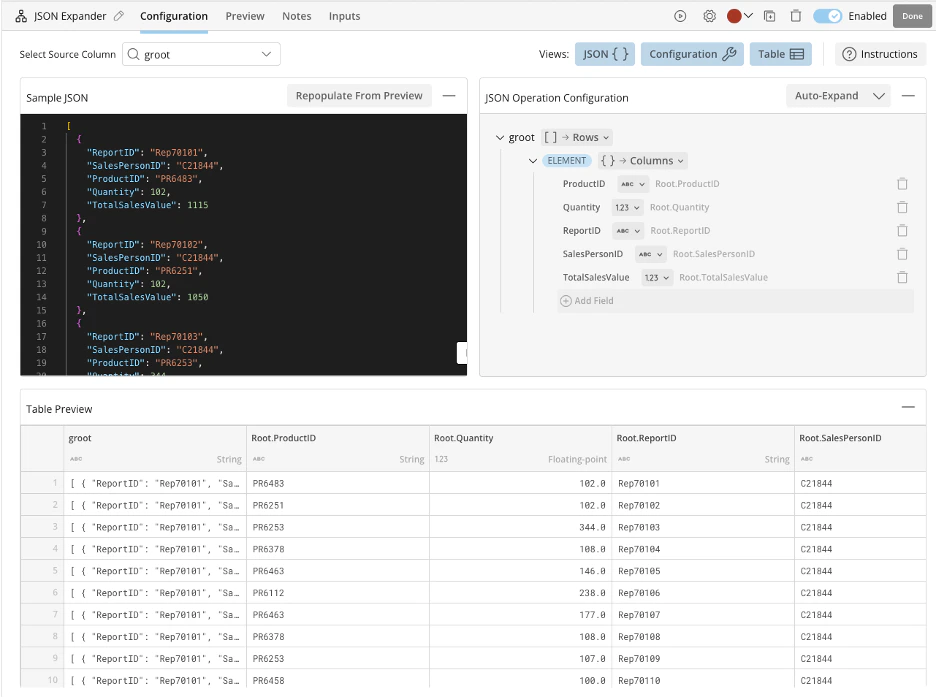
The JSON Expand action includes three toggleable panels that help you review and expand JSON-formatted data as you configure the action:- Sample JSON
- Configuration tree
- Table preview
Select a Source Column
The source column determines where JSON data is pulled from during each DataFlow run.- In the JSON Expand action configuration pane, select the Select Source Column drop-down menu in the upper-right corner.
-
Choose the column that contains your JSON data.
After you have selected the column that contains your JSON data, the Sample JSON panel automatically populates with a preview of the JSON data from the source column.

-
Select Repopulate from preview at any time to refresh the sample.
You can also edit the JSON directly in the Sample JSON panel if the preview does not include all required fields or structure.
- Beautify the JSON for improved readability
- Toggle between dark and light mode
Navigate the JSON Operation Configuration Tree
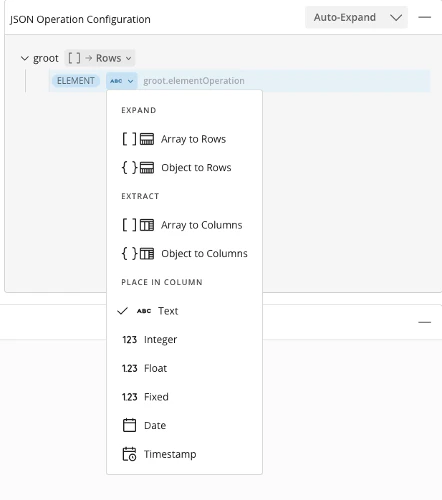
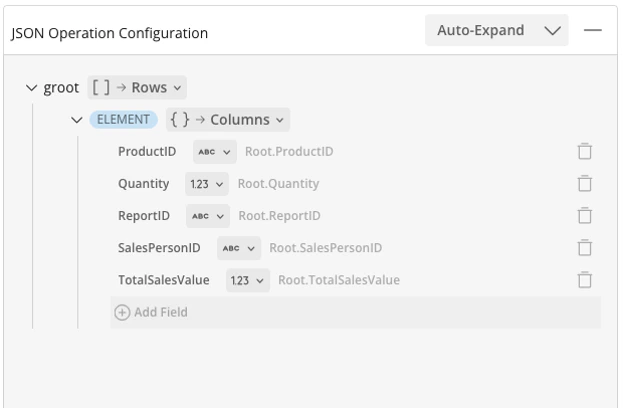
Use the JSON operation configuration tree to build and manage nested operations.- Select the down caret next to the root column name.
- Choose the operation to apply.
Each operation adds a new level to the tree. - Continue expanding the JSON structure by selecting the down caret at each level.
Additional Tools
Configuring nested JSON operations can become complex, especially without a clear example of the JSON data received during DataFlow execution. The configuration window includes several tools to simplify setup and validation.Sample JSON Editor
The Sample JSON Editor allows you to mock the JSON data expected during DataFlow execution.- Paste or edit JSON directly in the editor
- Use built-in formatting tools to inspect and clean up JSON
- When valid JSON is present, the operation graph uses it to populate available branches in the configuration tree
Auto-Expand
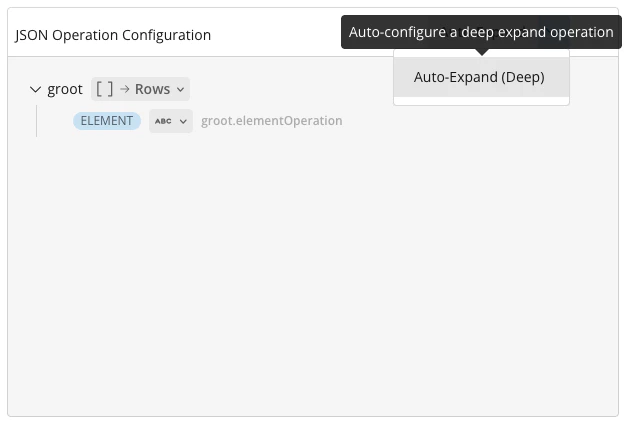
Select Auto-Expand to automatically generate a JSON operation tree based on the sample JSON. Domo uses a predefined JSON parsing algorithm to convert the data into tabular format. To expand each branch as deeply as possible:- Select the down caret next to Auto-Expand
- Choose Auto-Expand (Deep)
JSON to Table Preview
The Table panel provides a live preview of the output generated by your JSON operations. Toggle the Table panel to view columns and rows as they are configured. The preview updates in real time as operations are added or modified. When used together with the Sample JSON Editor, the table preview provides immediate feedback on how configuration changes affect the final output.