

Documentation Index
Fetch the complete documentation index at: https://domoinc-jkreitzman-patch-1.mintlify.app/llms.txt
Use this file to discover all available pages before exploring further.
Intro
This article describes how to configure the available Text tiles in Magic ETL. Learn how to use tiles in a Magic ETL DataFlow .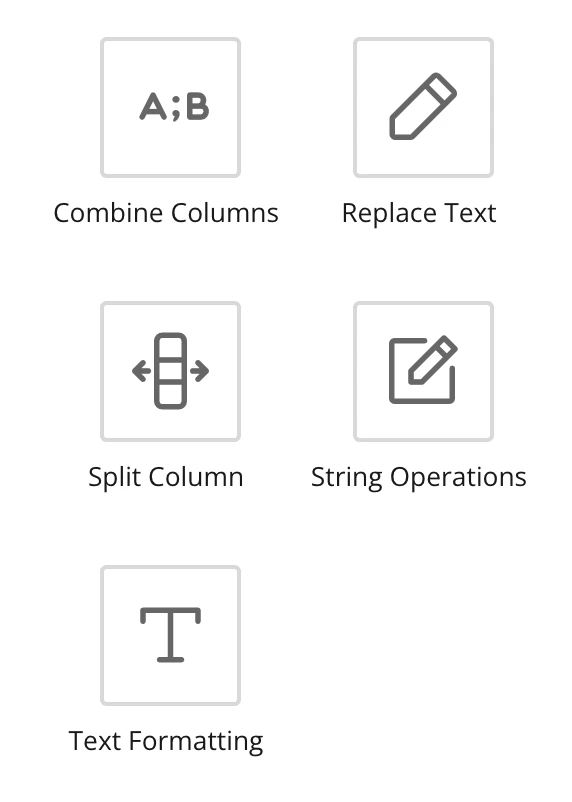
Combine Columns Tile
To configure the Combine Columns tile,
- Click the Combine Columns tile in the canvas.
- (Optional) Rename the tile by clicking
 , then entering the name you want.
 - Enter the name of the new column.
- Specify the character to use to separate the combined values.
- (Optional) Remove the original columns after they are combined.
- Select the columns to combine.
Replace Text Tile


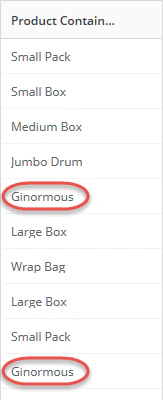

- Click the Replace Text tile in the canvas.
-
(Optional) Rename the tile by clicking
 , then entering the name you want.
- Select the column to search in.
- Enter the text value you want to find. For example, “Jumbo Box”.
-
(Option) Specify the find settings to use by clicking
 in the field.
Option
Description
Whole words
Searches for whole words.
Case sensitive
Searches with case-sensitive values.
Use RegEx
Searches and replaces using Java regular expressions.
- Enter the text value you want to replace with. For example, “Ginormous”.
Split Column Tile

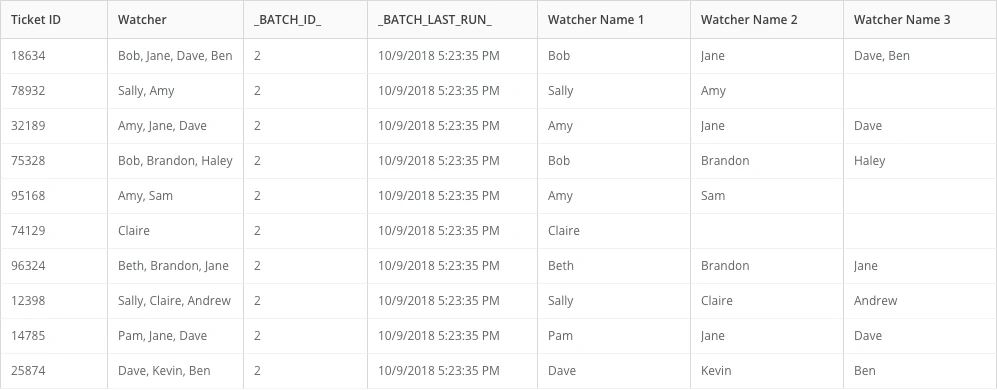

- Click the Split Column tile in the canvas.
-
(Optional) Rename the tile by clicking
 , then entering the name you want.
- Select the column you want to split.
- Choose the delimiter on which the string should be separated.
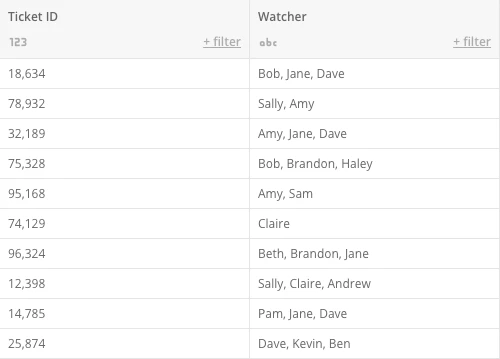
- Next, decide whether to keep the extra splits in the last column specified in step 4. For example, in row 1 in the table above, the extra split Ben exists in the last column Watcher Split 1.
-
Lastly, add and name as many columns as needed.
In the example above, you can see there are some rows that did not have 3 values to split, so those values remain blank in those columns.
Note: If you have more values to split than columns created and choose to not keep the extra splits, the values are not placed in any column.
String Operations Tile


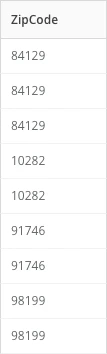

- Click the String Operations tile in the canvas.
-
(Optional) Rename the tile by clicking
 , then entering the name you want.
- Type the name of your new column.
- Then, choose the type of operation you want to perform.
- Select the column you want to perform this action on.
- Lastly, specify the beginning and ending character position you want from your string.
- (Optional) If you want to add another column, click Add String Operation .
Text Formatting Tile


- Click the Text Formatting tile in the canvas.
-
(Optional) Rename the tile by clicking
 , then entering the name you want.
-
For each column you want to format, do the following:
- Select the text column you want.
- Select the type of letter-case format you want.
- Select whether to remove numbers or remove everything except numbers.
- (Conditional) If you want to add another column, click Add Column .